
Access Links
An access link lets your members watch your live stream without typing a password. They open the link, enter their name, and they're in.
Each link belongs to a password: your Class Password or one of your Temporary Passwords. A link gives the same access as its password, including Live Replay if that password has it.
Access links are handy if your members book through another system. Paste the link wherever your members already see their class details, like a booking confirmation or a members-only page.
Keep your link private. Anyone with the link can watch, the same as anyone who knows your password. Only share it somewhere your members can see it.
Create a link for your Class Password
- Log in to your Class Owner Dashboard.
- In the left menu, click Class Password.
-
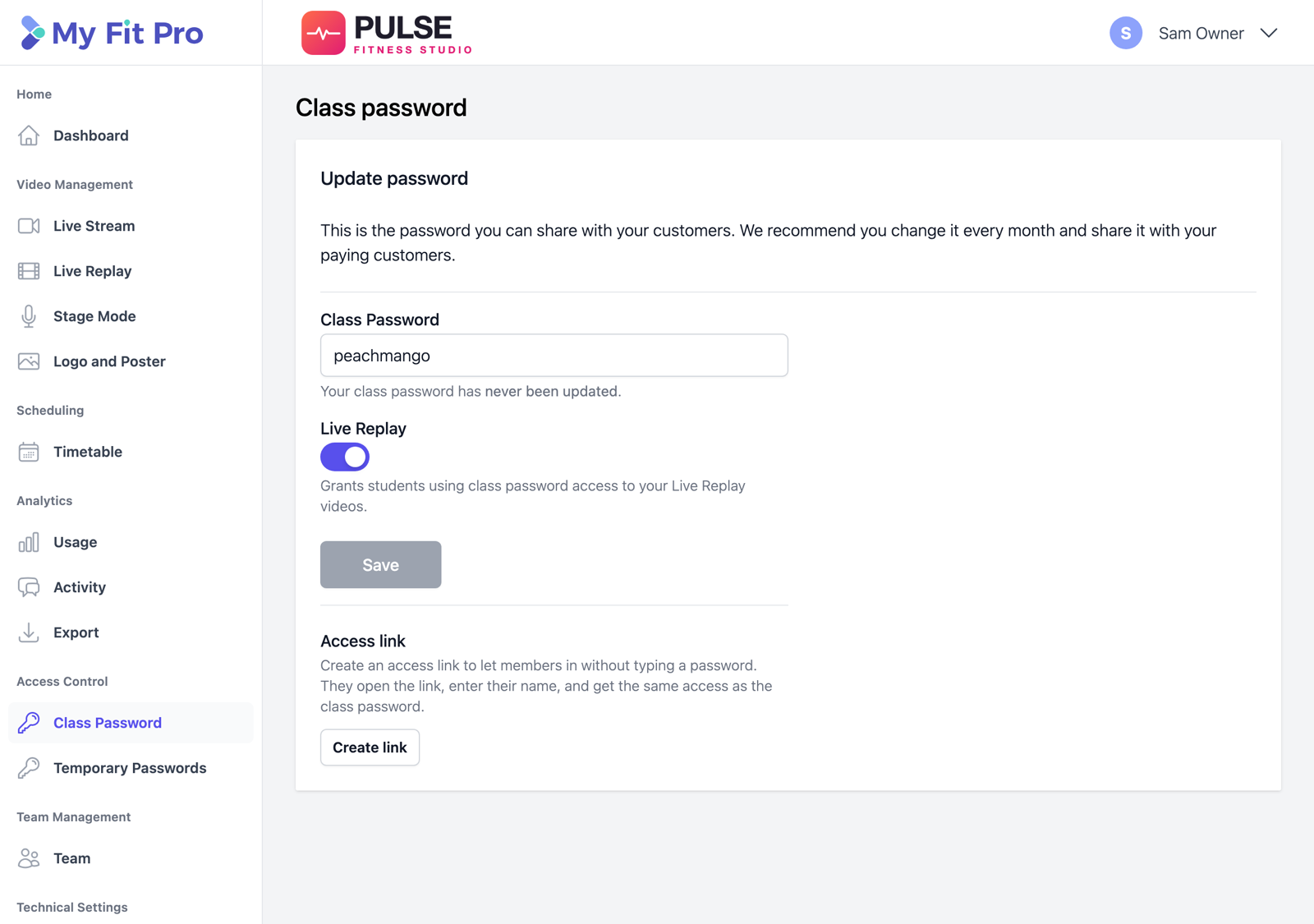
Under Access link, click Create link.
-
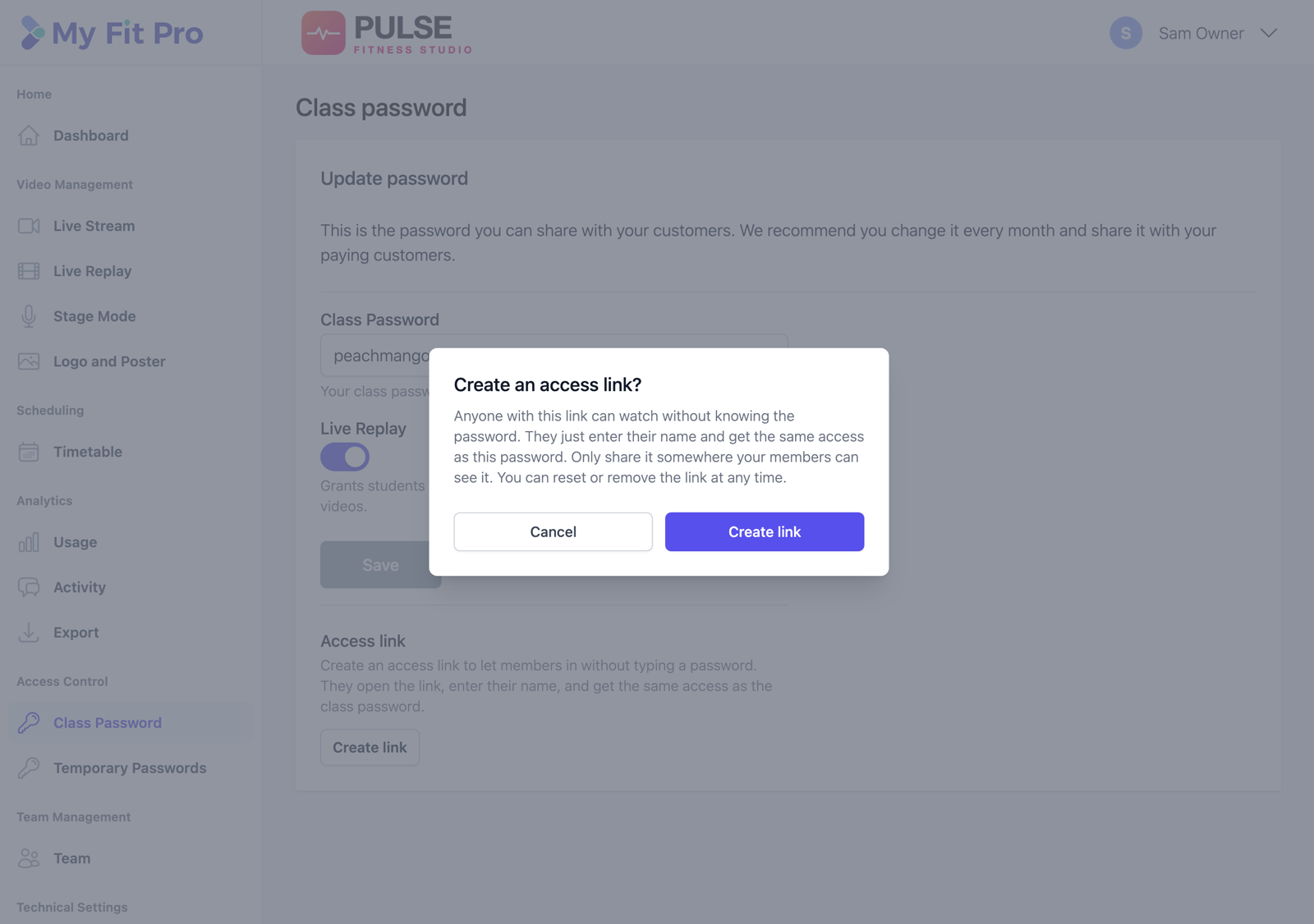
Read the message, then click Create link to confirm.
-
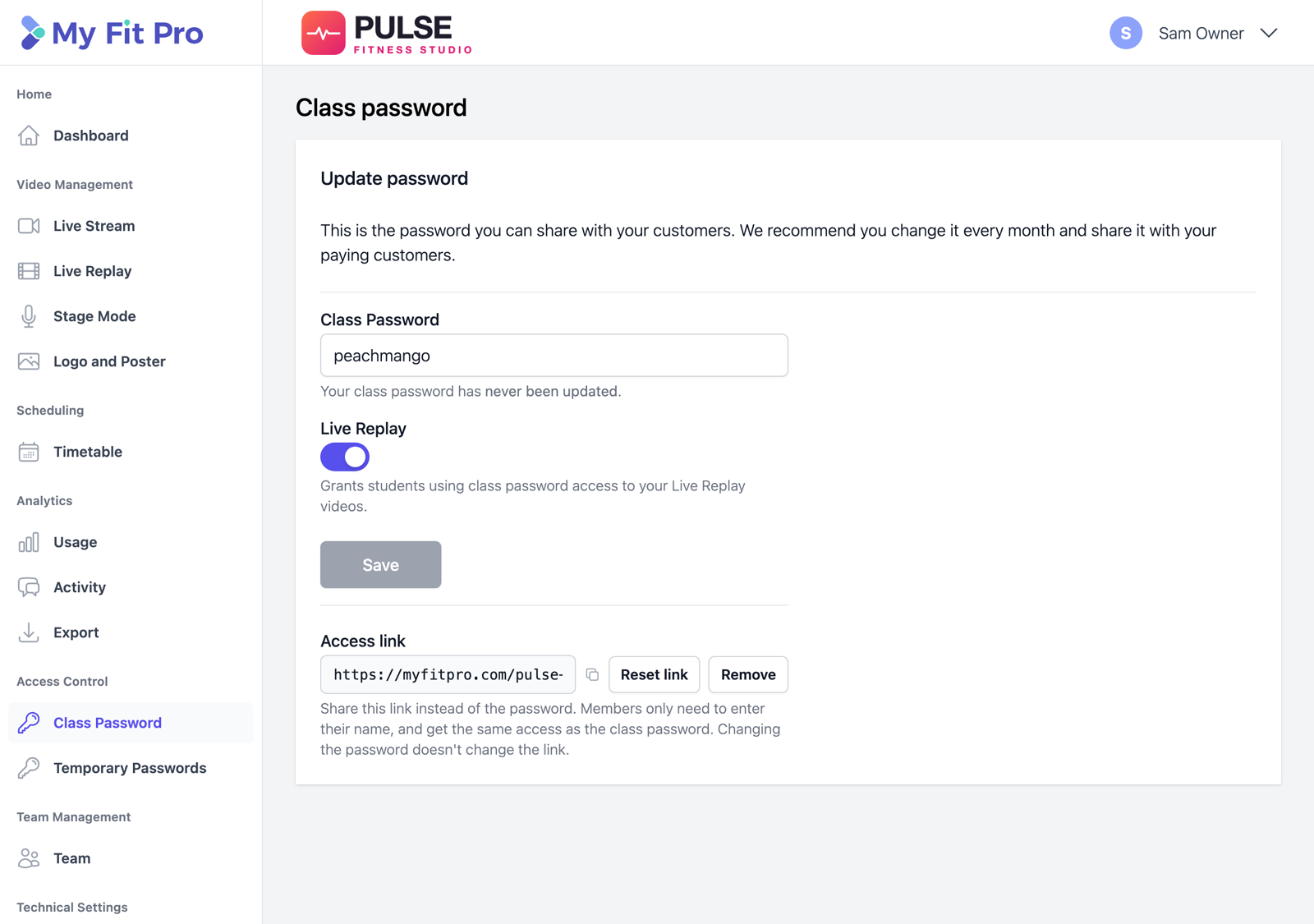
Click the copy icon next to your link, then paste it into your emails, booking system or members-only page.
Create a link for a Temporary Password
- In the left menu, click Temporary Passwords.
- In the Access Link column, click Create link next to the password, then confirm.
-
Click the copy icon next to the link to copy it.
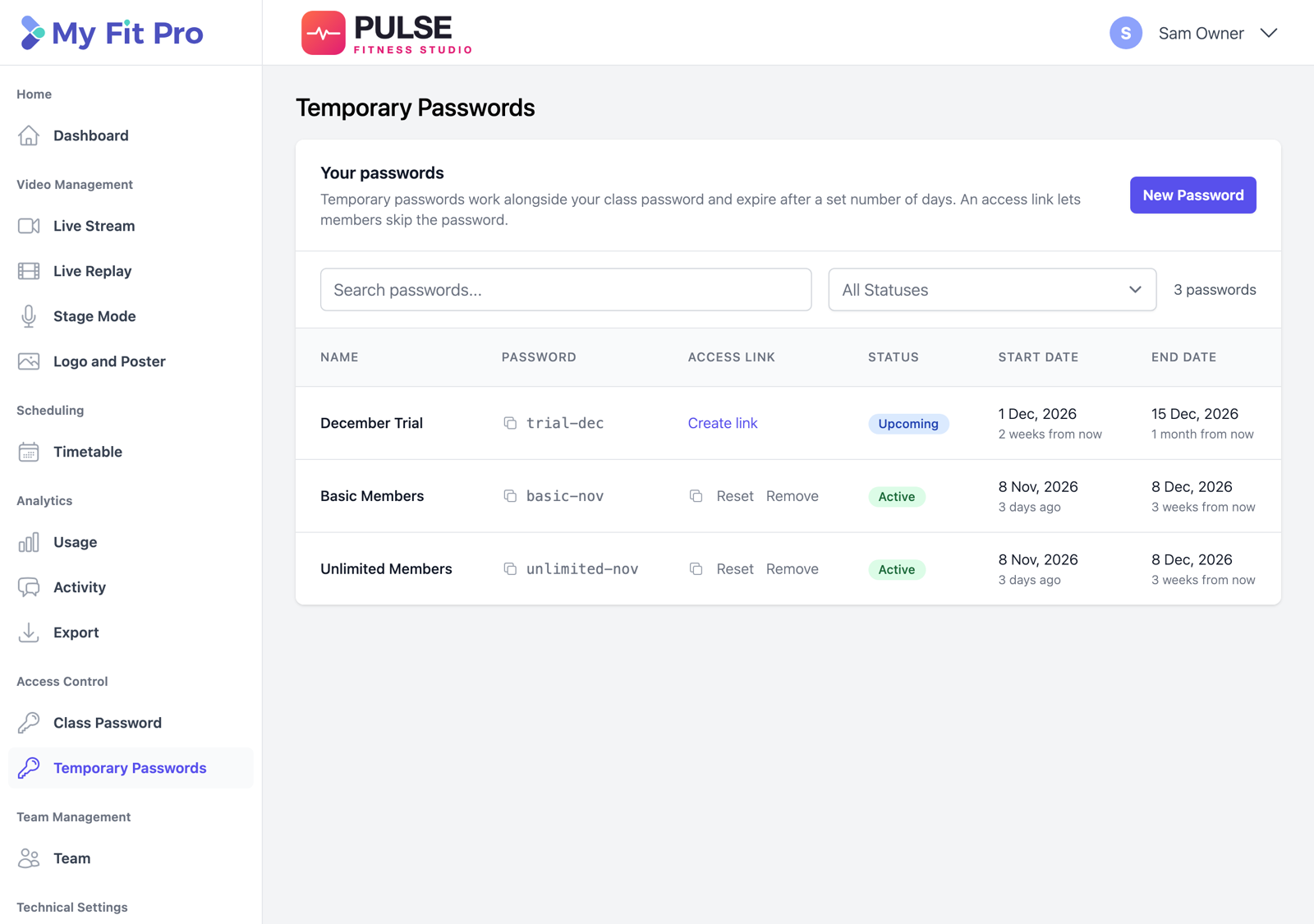
Tip: To offer different levels of access, create a Temporary Password for each membership level, each with its own link. For example, "Basic Members" without Live Replay and "Unlimited Members" with Live Replay.
Reset or remove a link
- Reset link gives your link a new address. The old link stops working straight away, so share the new one with your members.
- Remove turns the link off. If you create a link again later, it will have a new address.
- Members who are already watching can finish the class. They aren't logged out.
- Changing a password doesn't change its link. Your existing link keeps working.

What your members see
-
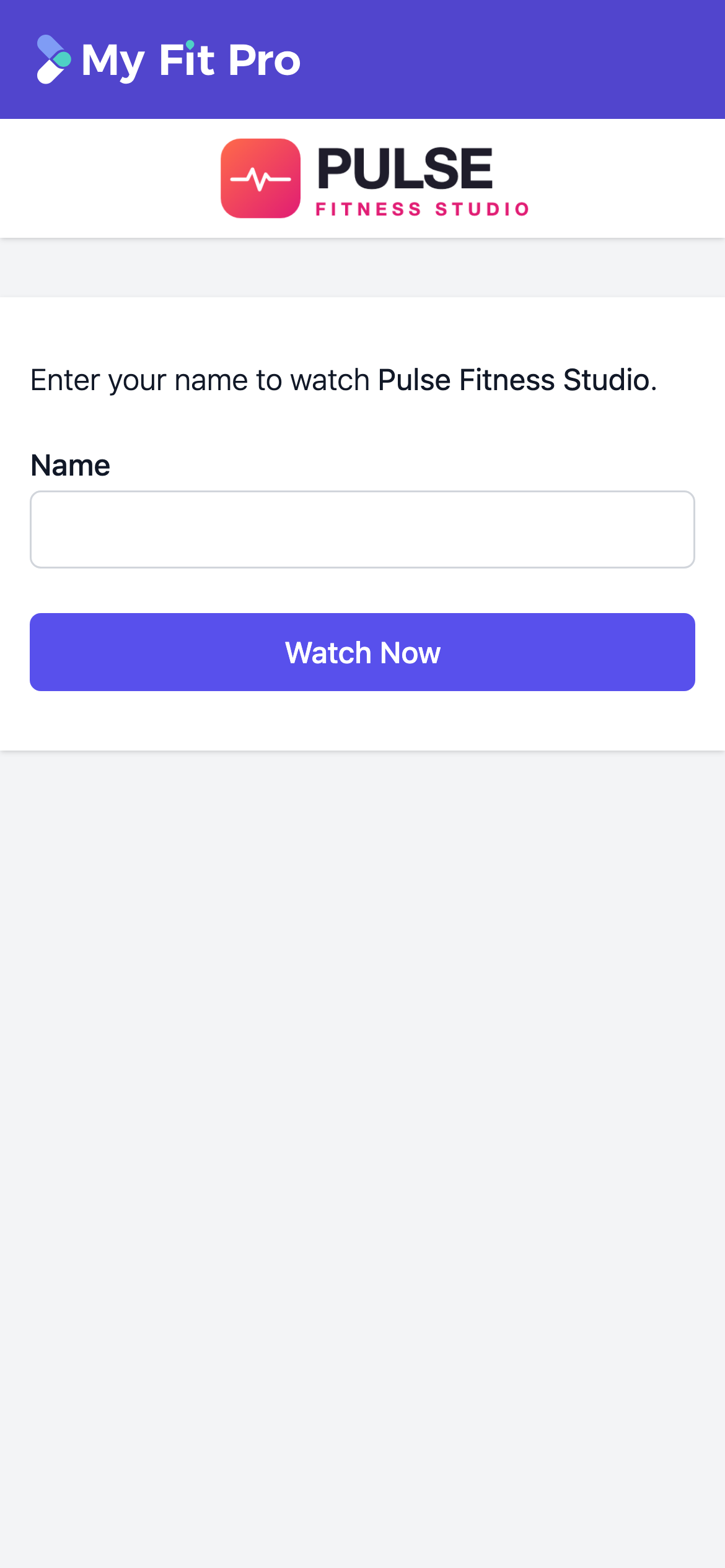
They open your link, enter their name and tap Watch Now.
-
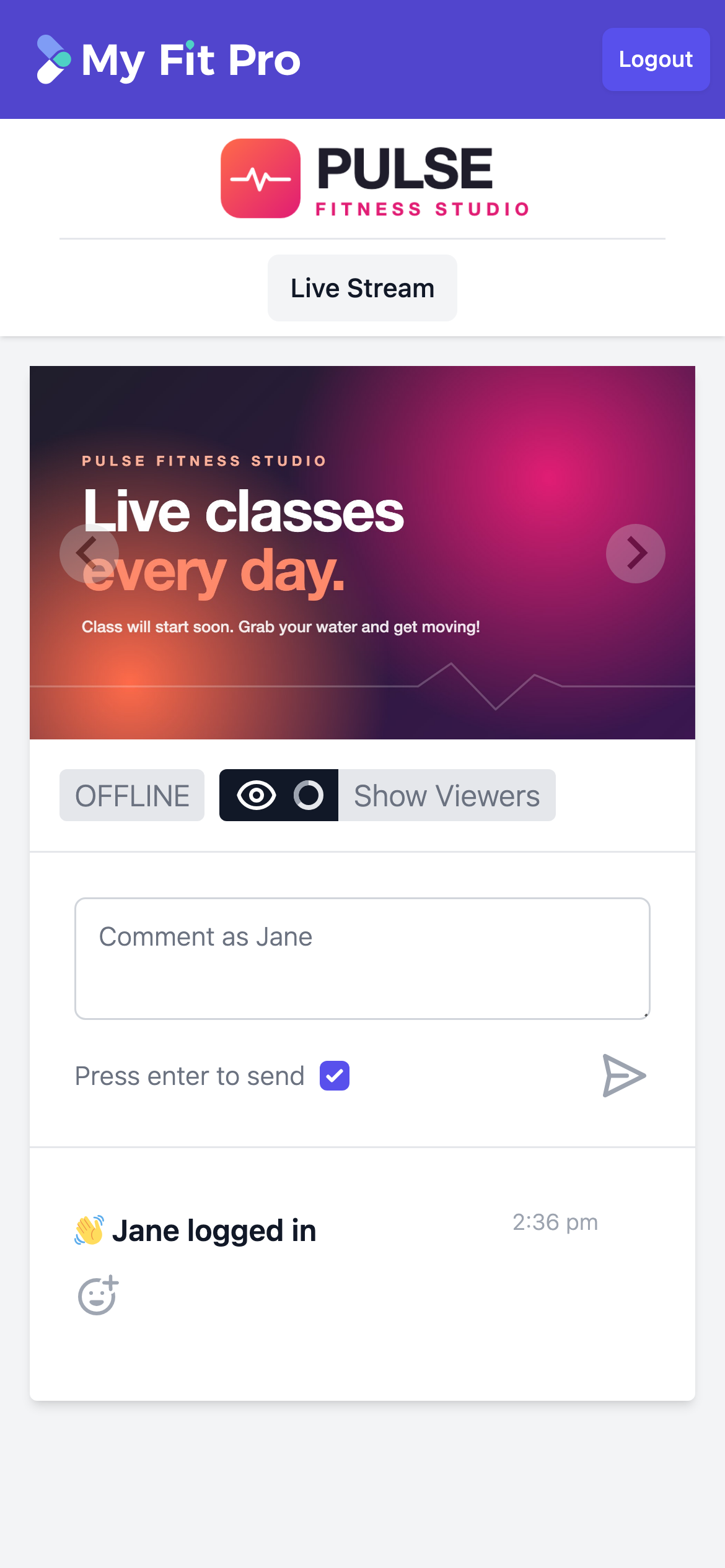
They go straight to your live stream.
-
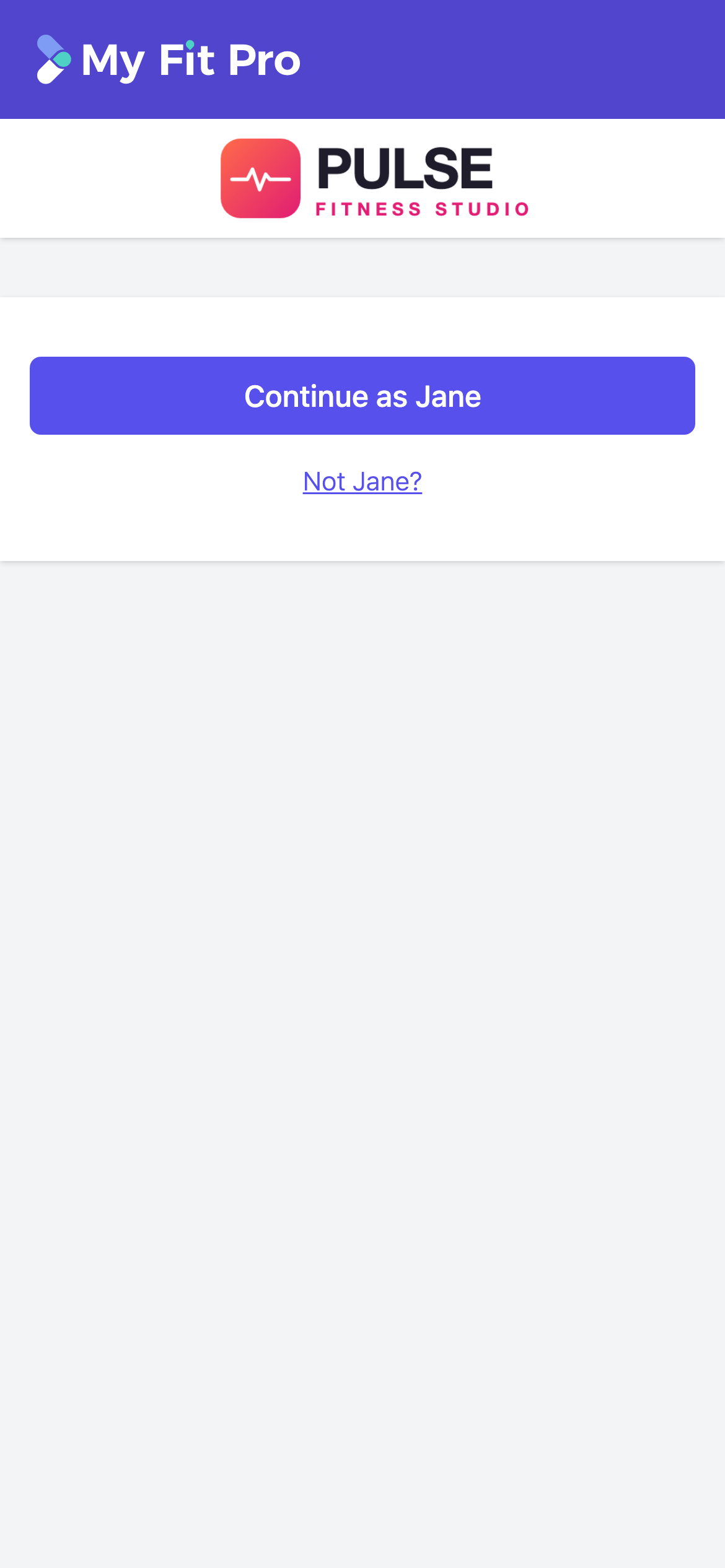
Next time they open the link on the same device, their name is remembered, so they just tap Continue as. Someone else using the device can tap Not [name]? to enter their own name.
-
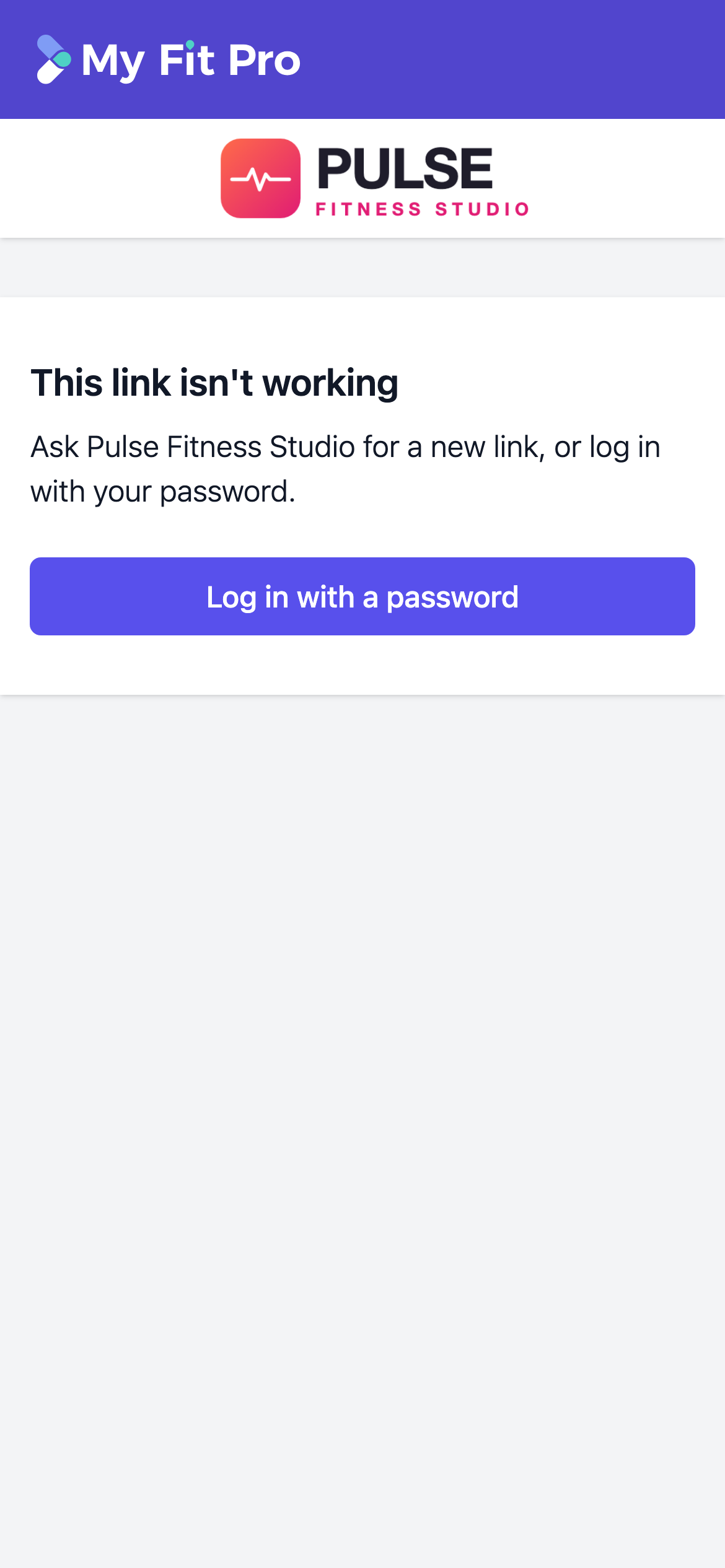
If a link has been reset or removed, or its Temporary Password has expired, they'll see a message asking them to get a new link from you or log in with a password.
Good to know
- Members need the link every time they watch. Remembering their name doesn't let them in on its own.
- A Temporary Password's link only works between that password's start and end dates. Deleting the password turns off its link.
- Your Class Password and Temporary Passwords still work as normal alongside your links.